Read, study, and make it yours
This is the SoberHub reader guide: your library in one app, search across every book, cross-references between books, bookmarks, notes and highlights, and sharing. Listening has a guide of its own.
Listening guide →

Your whole library, one app
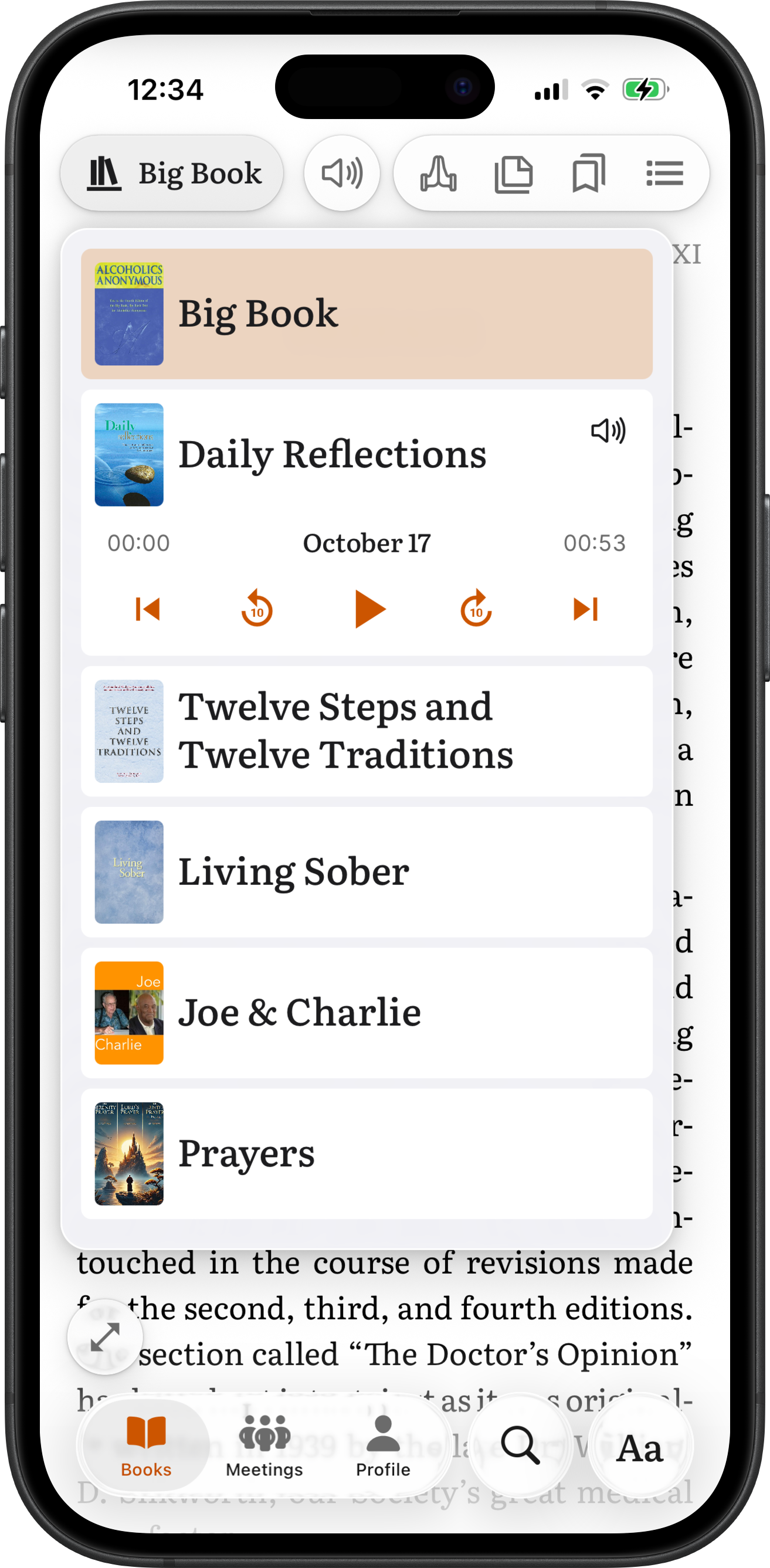
Recovery literature, daily reflections, study guides, and audio - all in one place. Each book reopens right where you left off.
Reading appearance
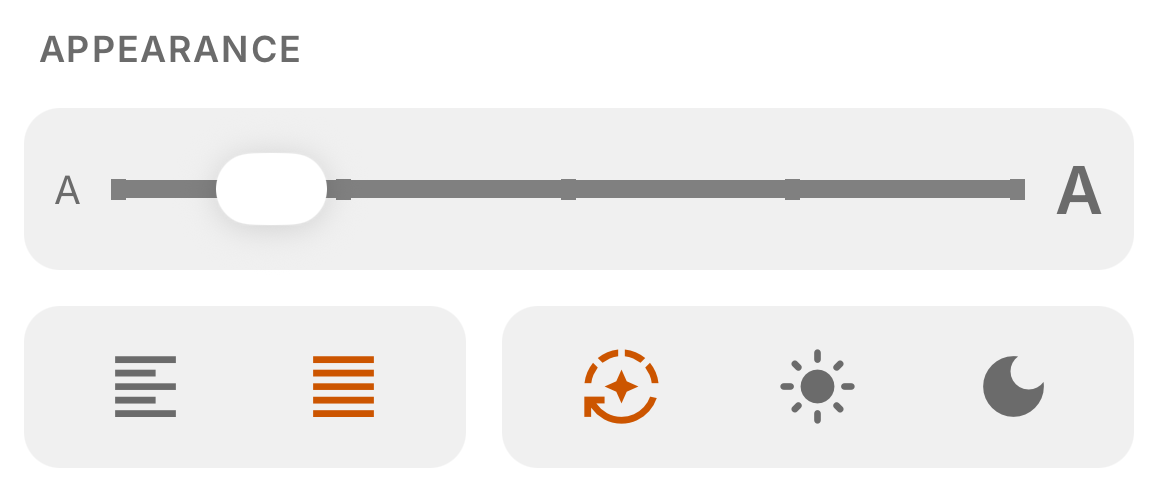
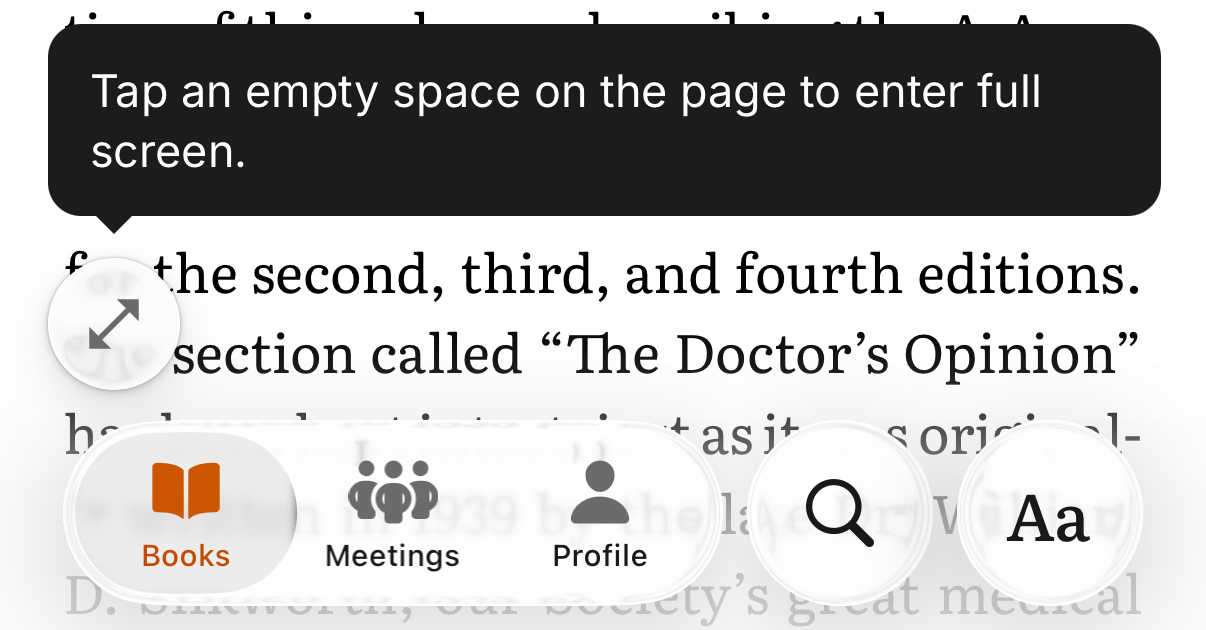
Tap Aa, next to Search in the tab bar, and one sheet holds text size, alignment and theme. Every change shows on the page as you make it and applies to every book.
Text size
Drag the slider between the small and the large A. The page keeps your place as the text resizes.
Alignment
Justified to both margins (the default) or left.
Theme
Auto follows your phone's light or dark mode. Light and Dark stay as you set them. The theme changes the whole app, not only the page.
Pinch to zoom
Pinch the page with two fingers to make the text larger or smaller. It is the same setting as the slider. The text under your fingers stays in view while the page settles.
Full screen
Tap the expand button above the tab bar, or any empty spot on the page, and everything but the page disappears. Tap an empty spot again to bring the controls back. After you have tapped the page into full screen a few times, the button goes away.
Search all your books, notes, and bookmarks
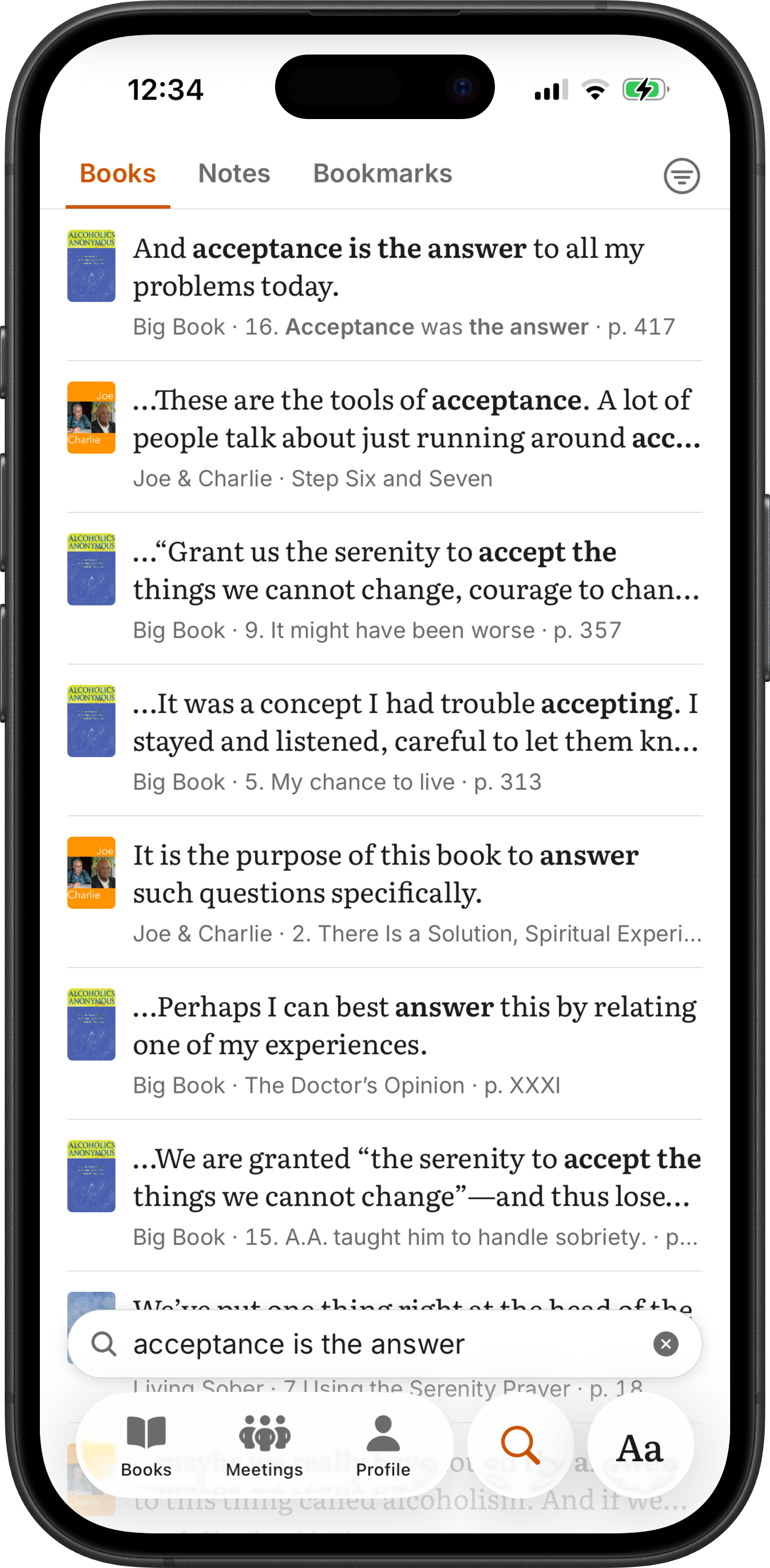
The Search tab looks through every book in your library, your notes and your bookmarks, and lists the passages that match. It finds a passage by meaning, not only by wording, so a question in your own words lands on the chapter that answers it.
- Three scopes: Books, Notes and Bookmarks. One book filter applies to all three and is kept across restarts.
- Results come from every book you have, with the book you are reading first.
- Notes are searched by their text and the passage they sit on; bookmarks by title, notes, color and page.
Cross-references that connect the dots
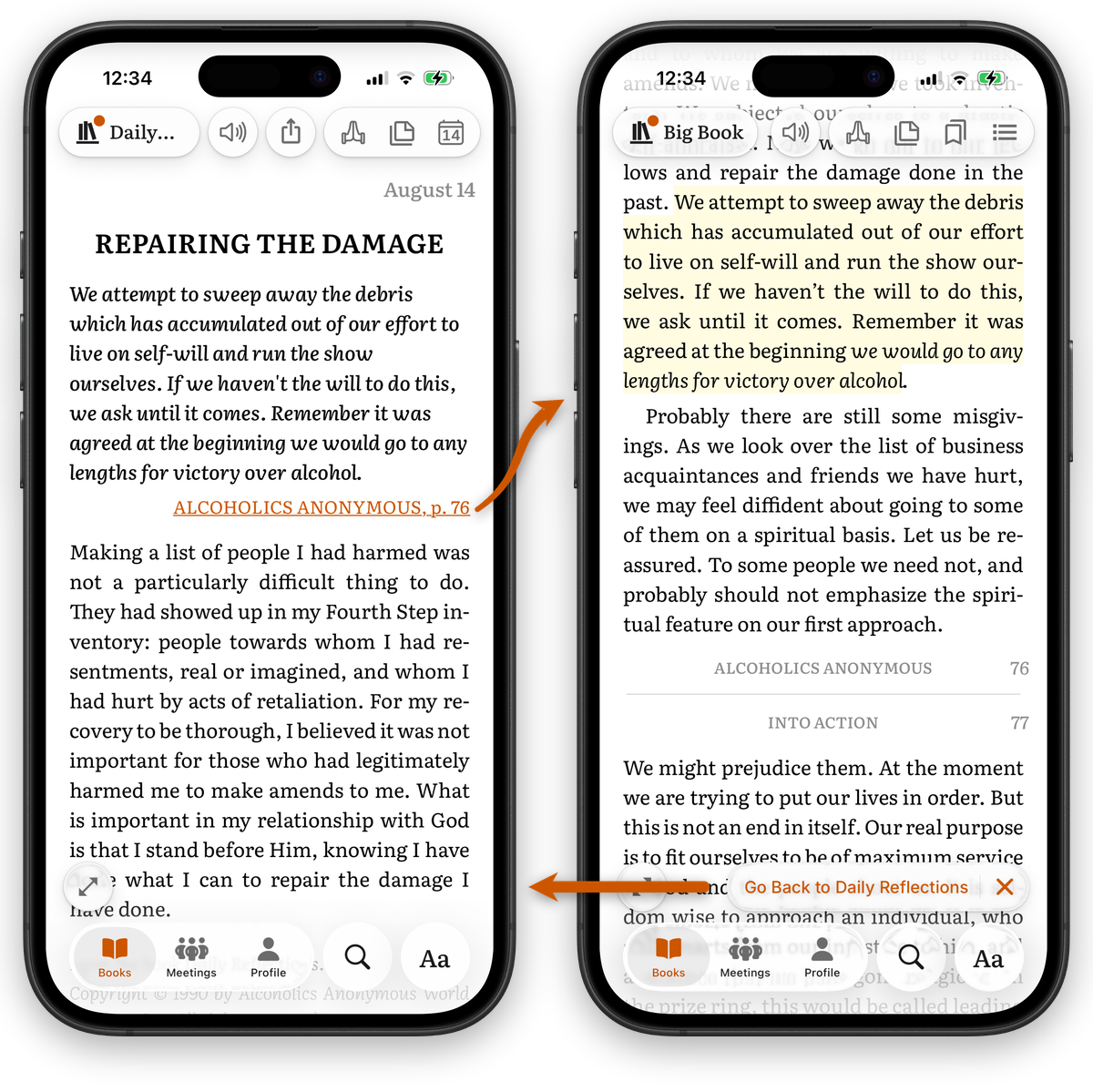
Tap a reference in Daily Reflections and jump straight to where it appears in the Big Book. Tap back to return. No flipping, no searching, no guessing.
Notes and highlights
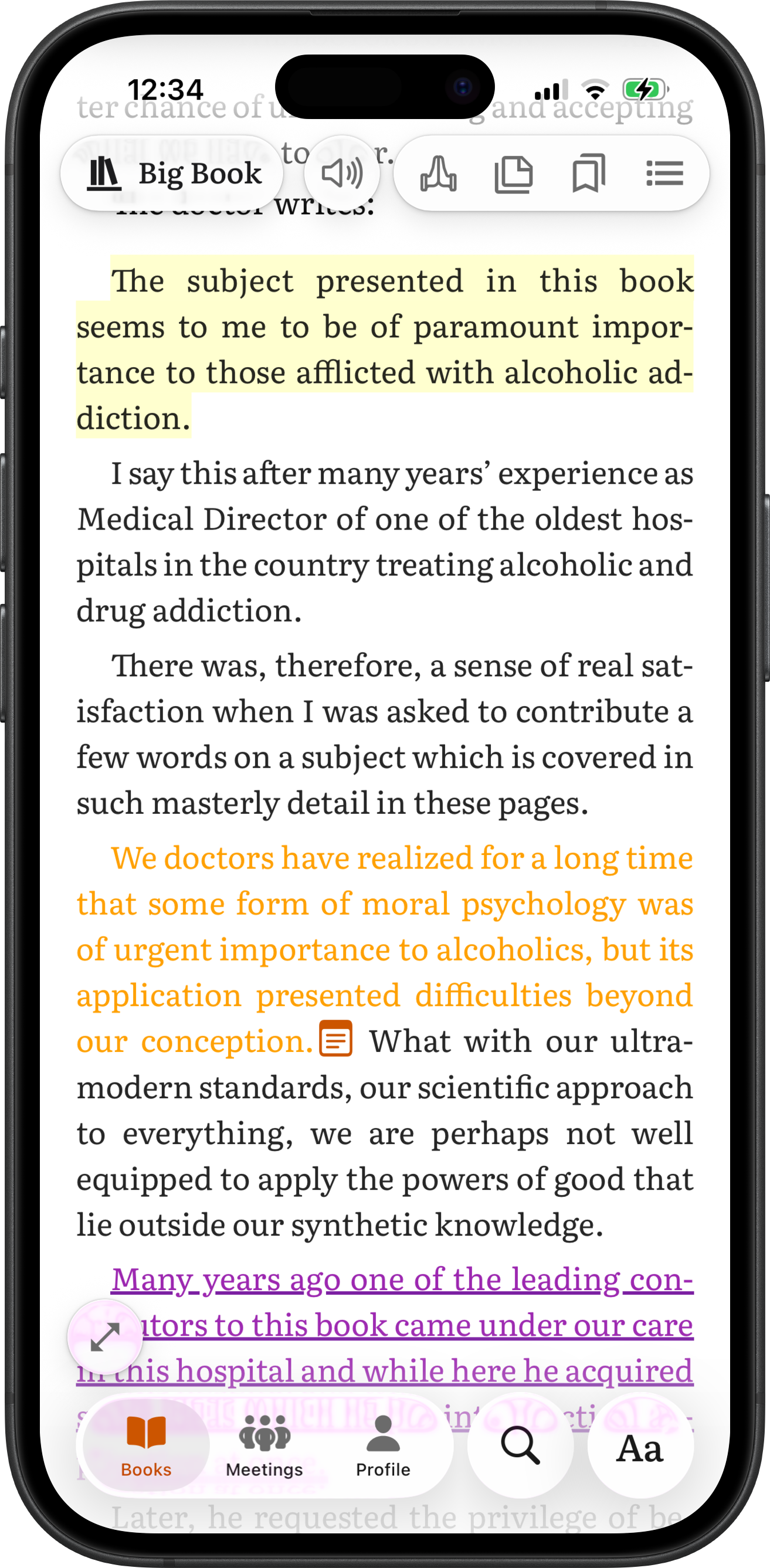
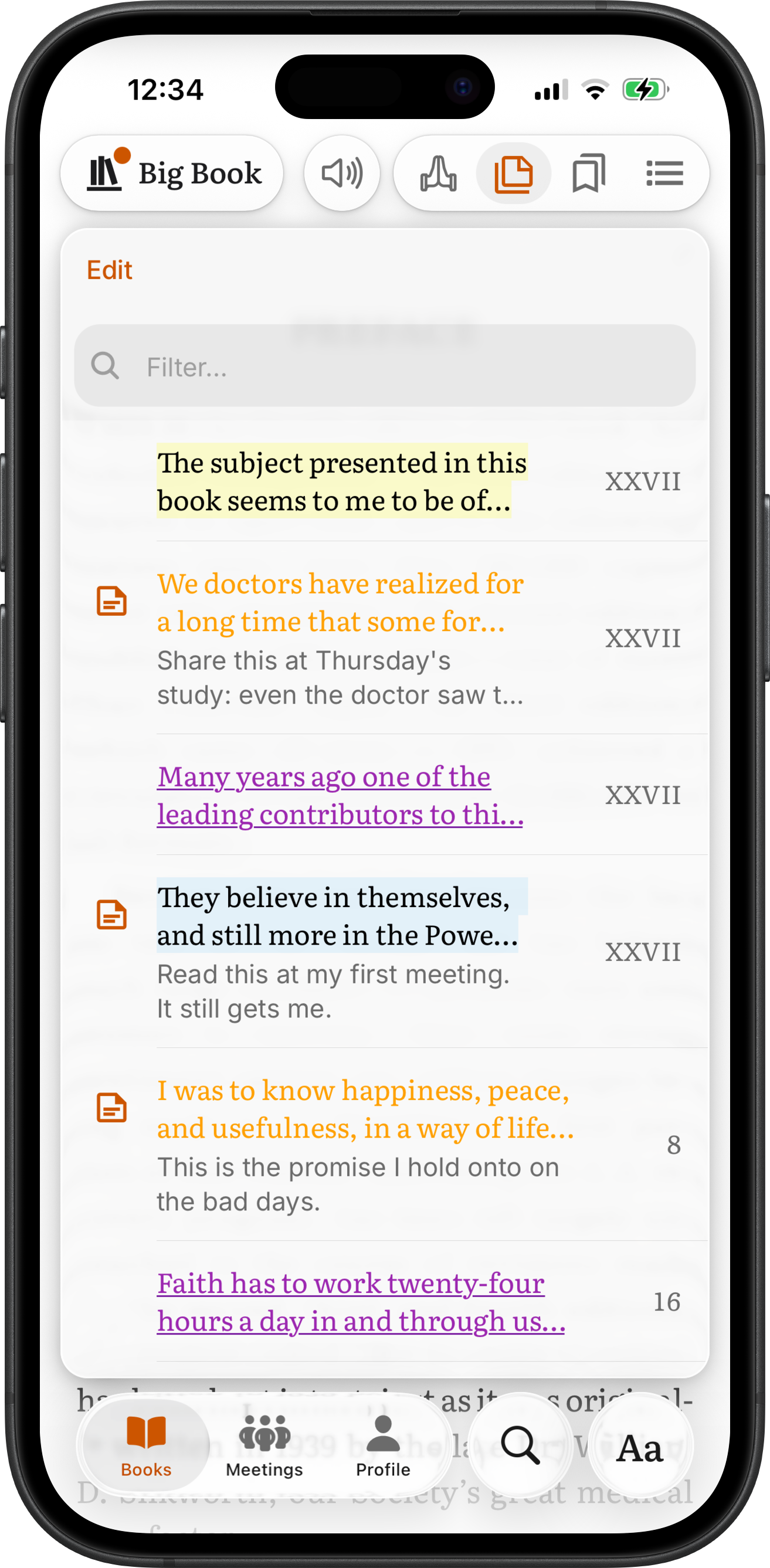
Select any passage to highlight or underline it in the color you choose, or add a personal note. Notes are listed per book with the passage they sit on, and search finds them across every book. Deleted notes and highlights stay in Recently Deleted for 30 days.
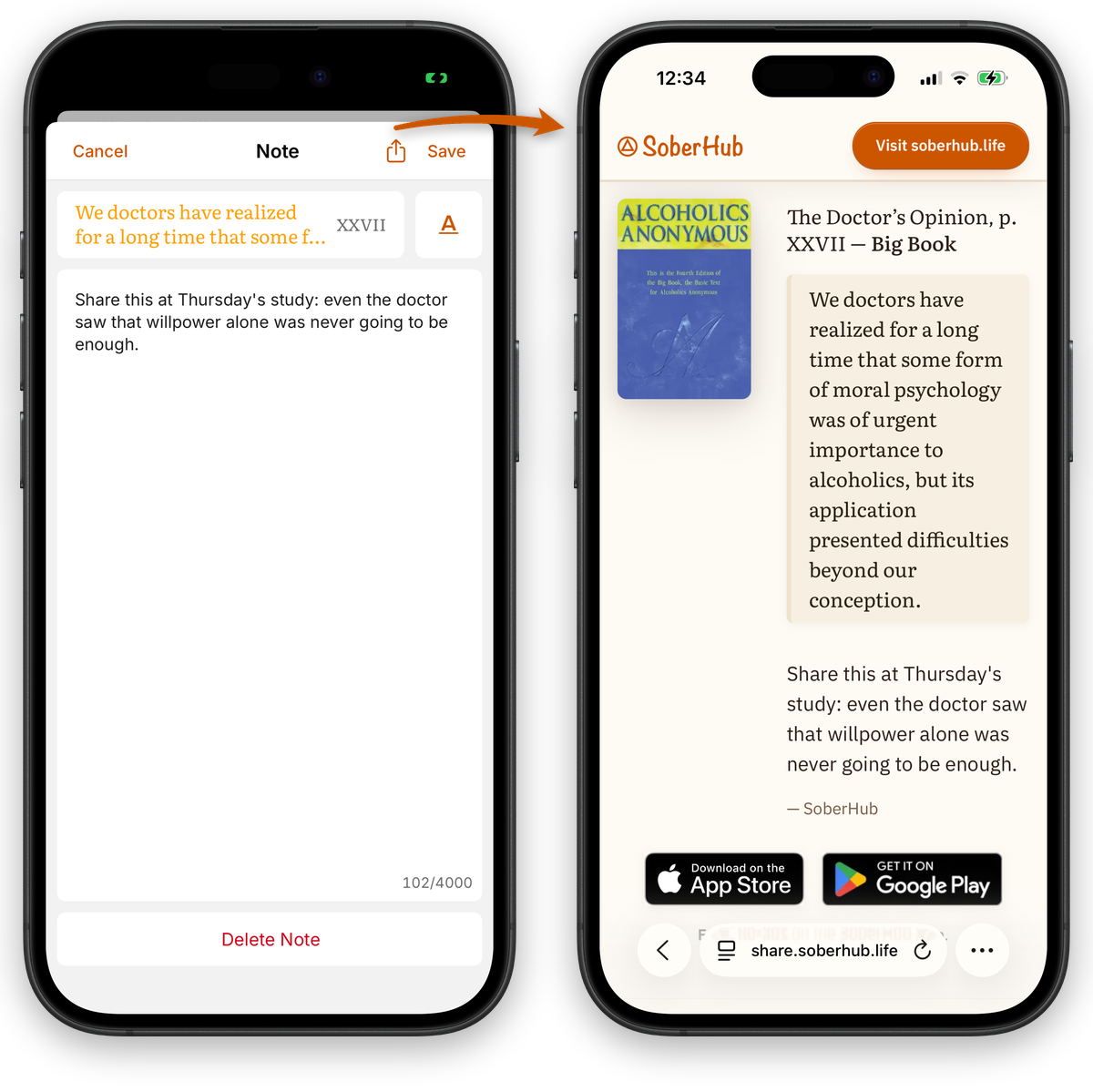
Share a note
Tap Share in a note to send it with the passage it sits on. The link opens on share.soberhub.life with the passage and your note under it, and in the app at the same passage when the app is installed.
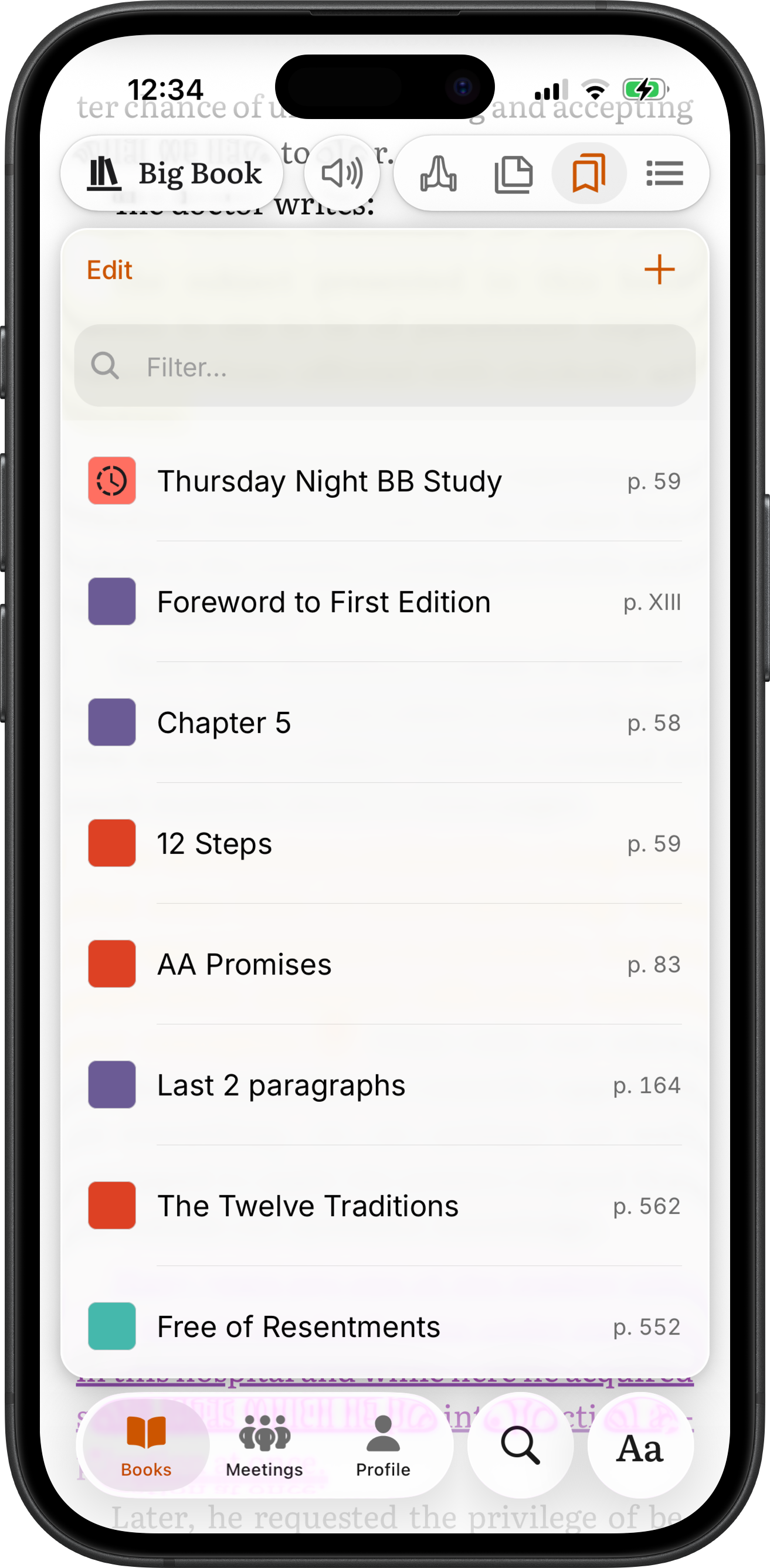
Bookmarks
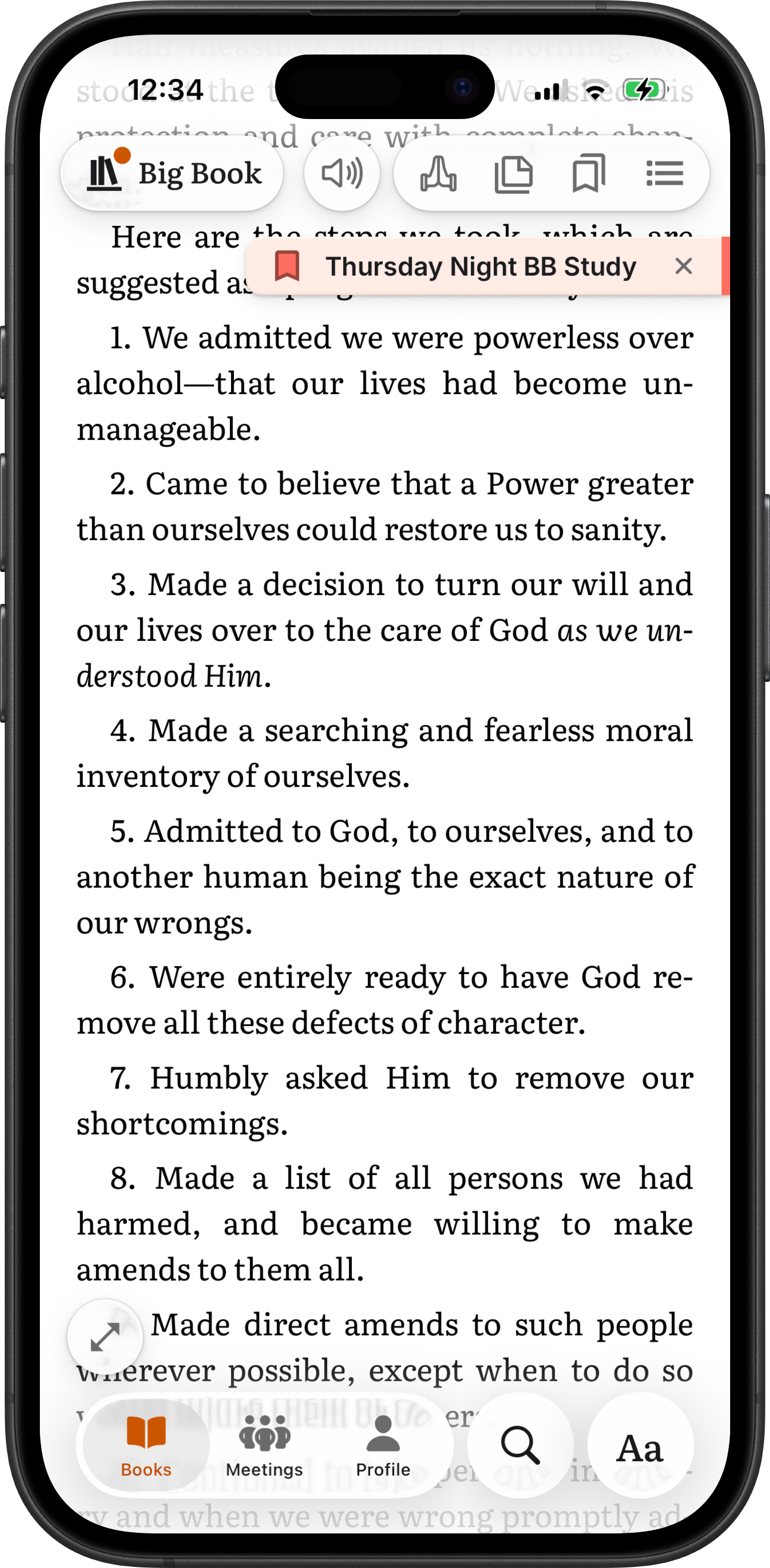
A bookmark has a title, notes and a color, so you can sort bookmarks by meeting or by topic. A floating bookmark follows the page you are on, so each meeting you attend can keep its own place and move with the group. Everything stays with you across sessions.
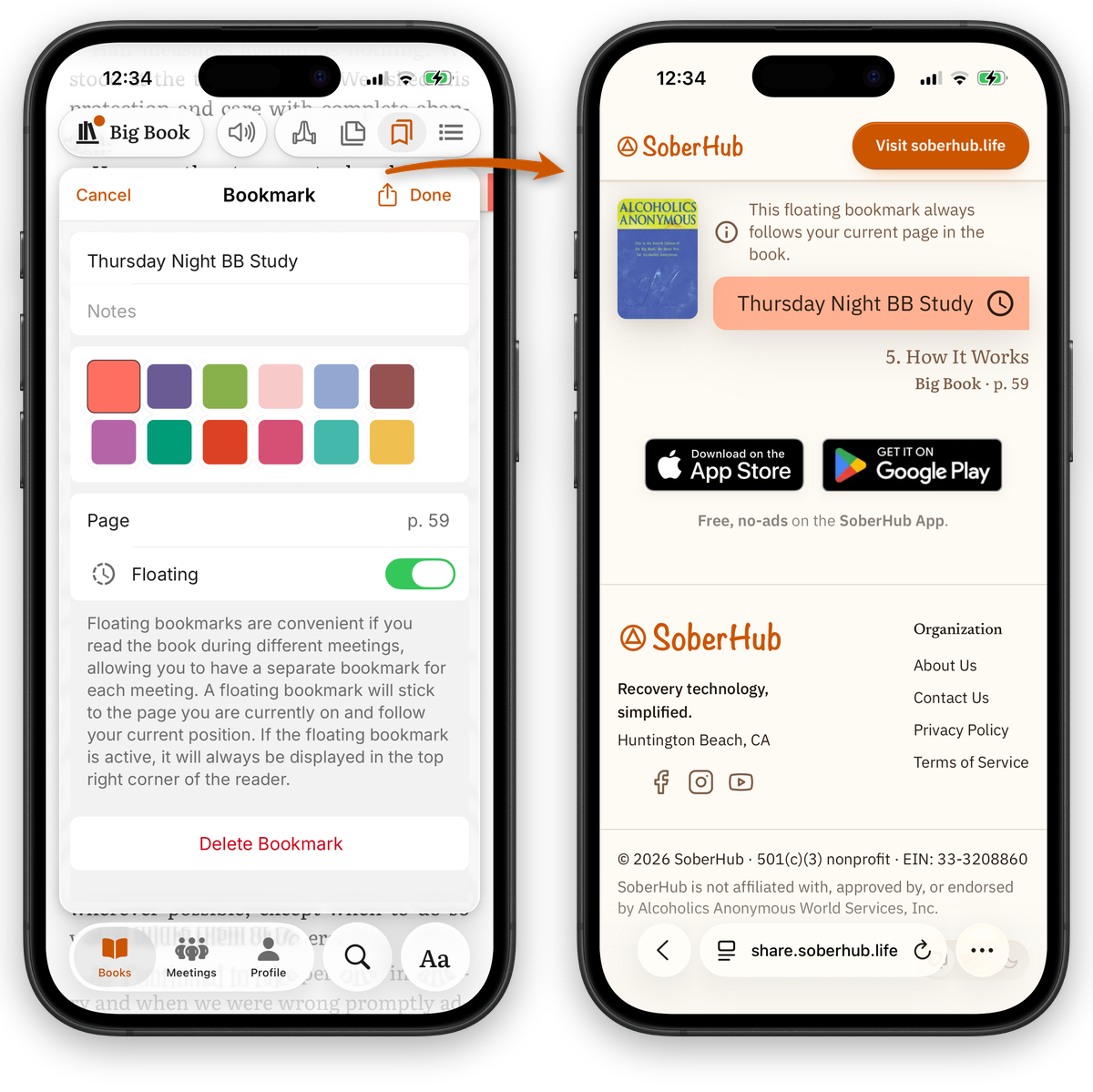
Share a bookmark with your group
Tap Share on a bookmark to send it to your sponsor, a sponsee or your home group. The link opens on share.soberhub.life with the bookmark's title and notes, and in the app on the page it marks, with a Go Back pill to where the reader was.
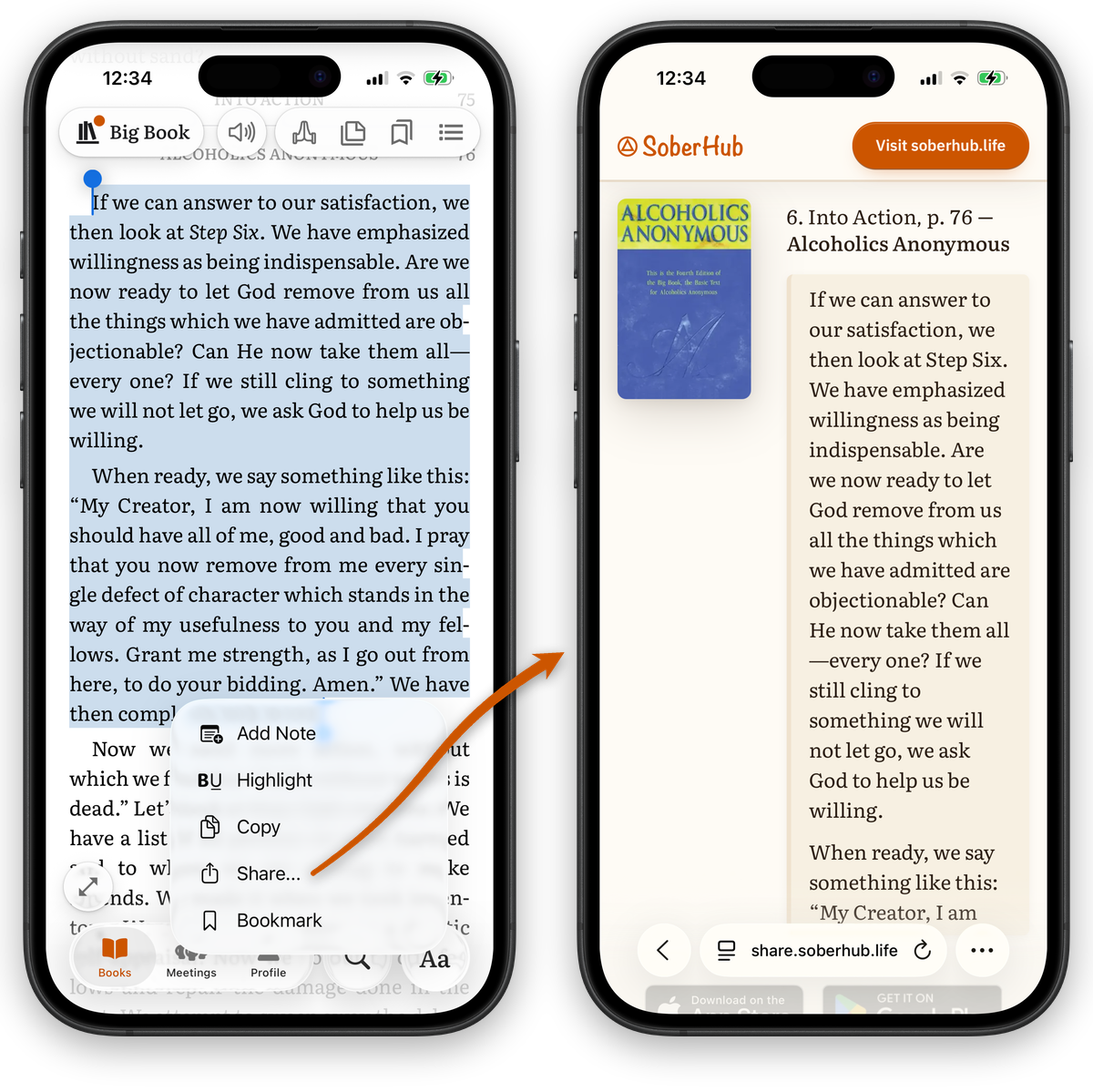
Share what hits you
Select any passage and share it - as a message, a social post, or a link with a rich preview that opens directly in the app. What helped you might help someone else.
See it in action →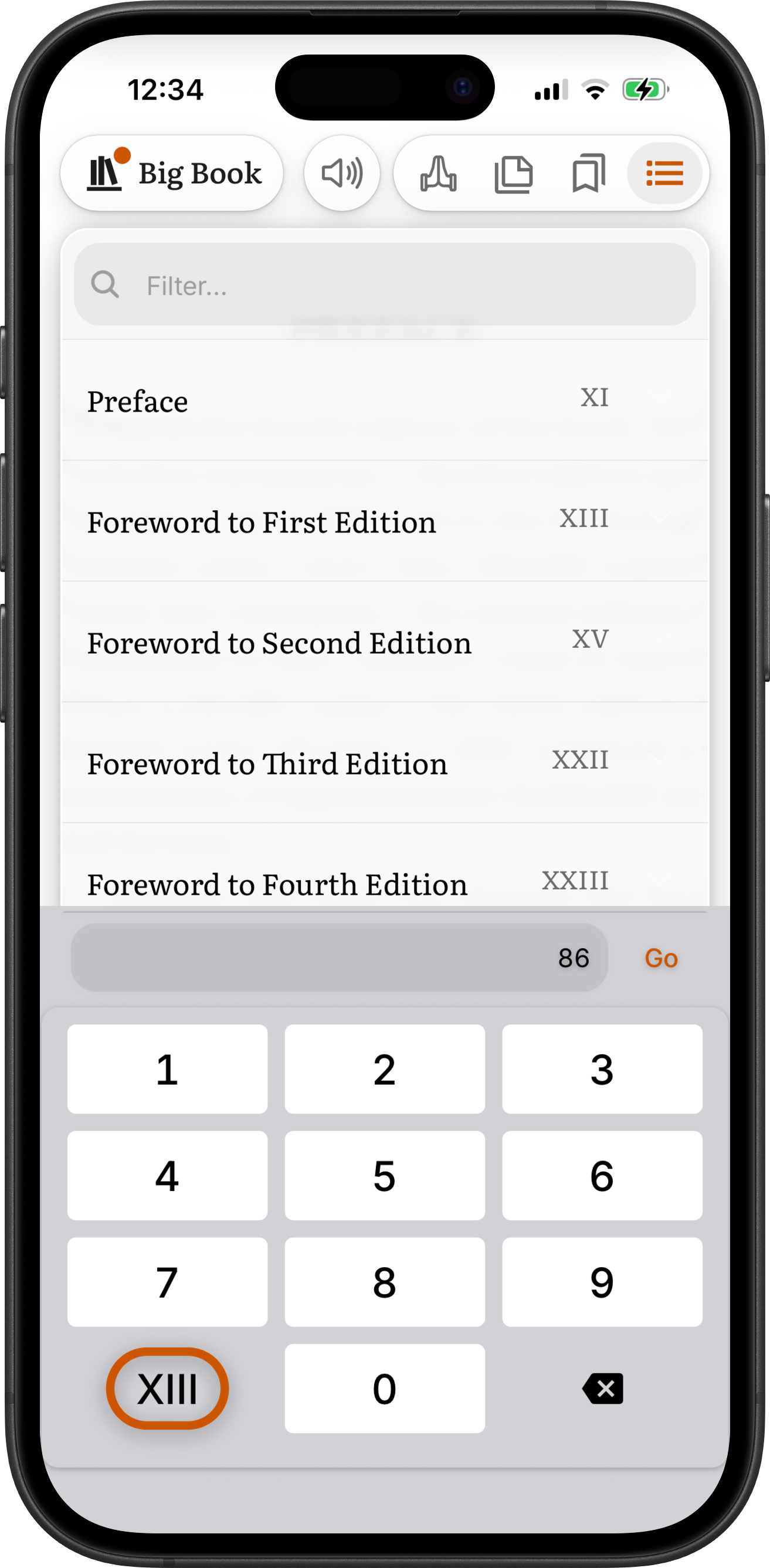
Go to a page
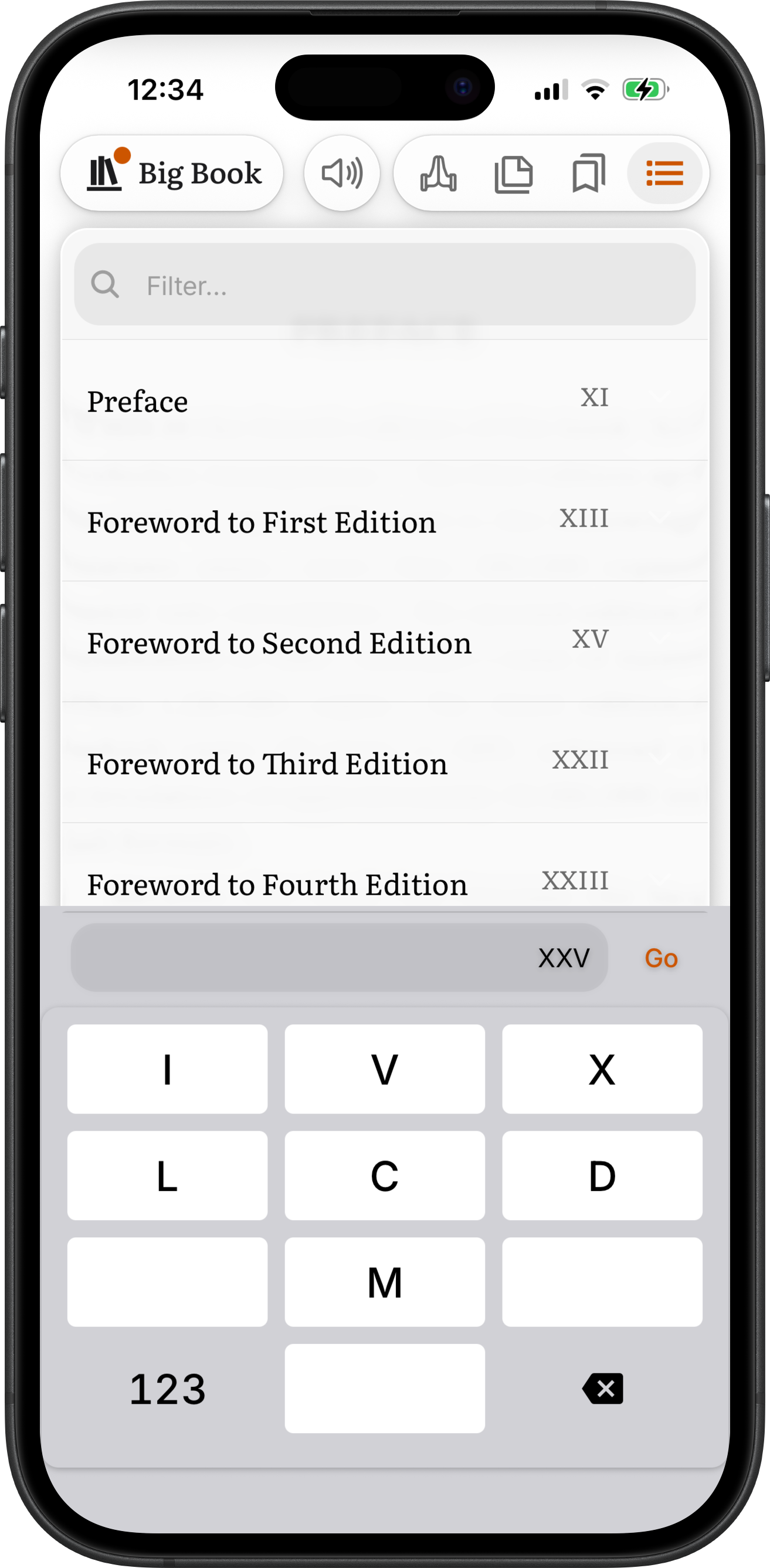
When the chair says "turn to page XXV", nobody has to work out a Roman numeral. Open the contents and tap XIII on the page keypad. The keys turn into I, V, X, L, C, D and M, so you type XXV just as you hear it and land on The Doctor's Opinion. The front matter keeps the printed book's page numbers, from the Foreword to the First Edition on XIII to the Foreword to the Fourth Edition on XXIII. Ordinary pages work the same way: type 86 and tap Go.
In the car and by voice
CarPlay and Android Auto play your books and the daily reflection from the dashboard. Siri and Google Assistant start a chapter by voice. Both are covered in the listening guide.
Listening guide →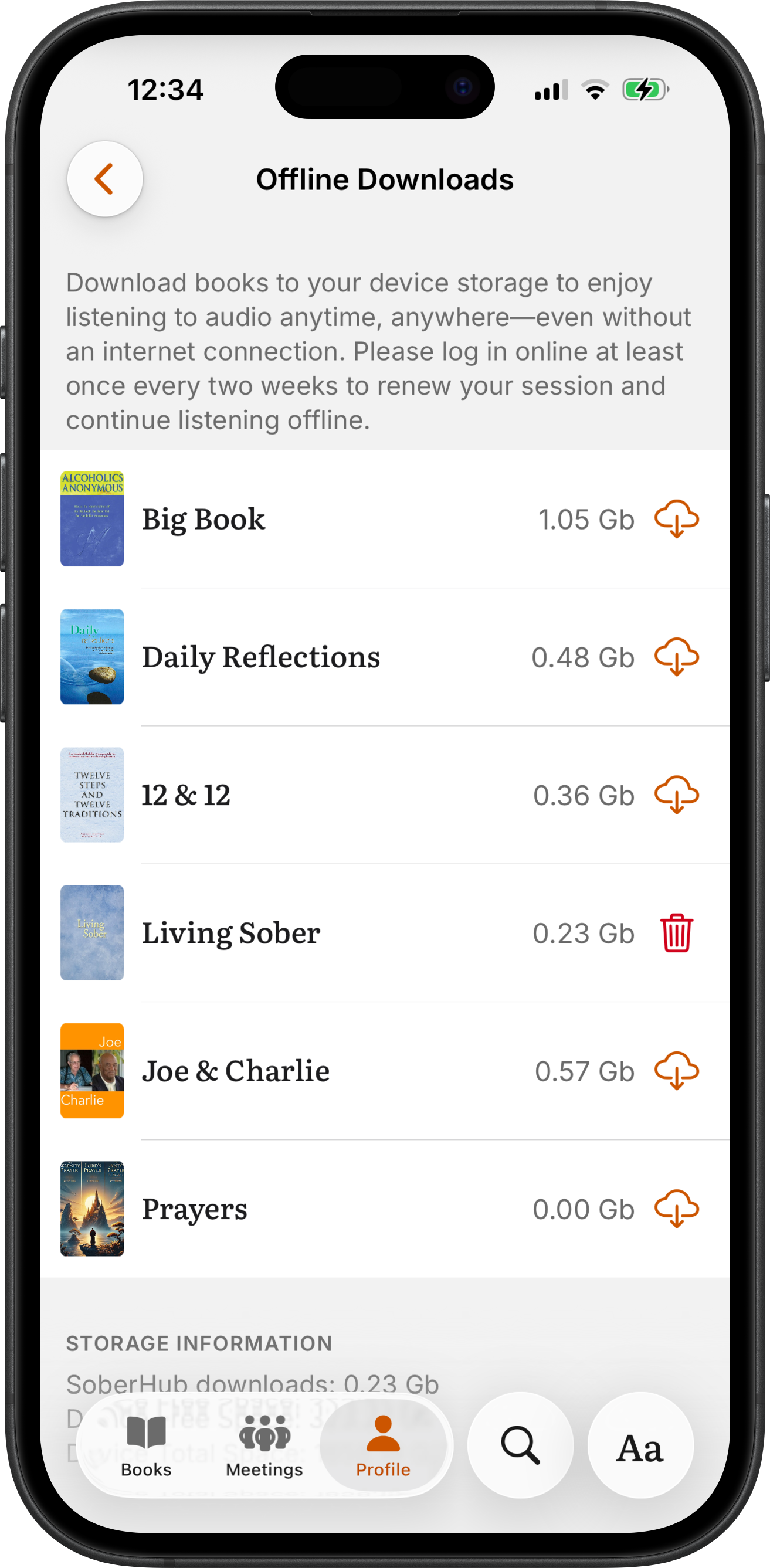
Listen offline, add a missing book
Listen without a connection
Open Profile → Offline Downloads and download a book's audio. It plays without a connection, on a flight or wherever there is no signal. Go online at least once every two weeks to keep listening offline. Reading needs no download: the app keeps the books on your phone by itself.
Add a missing book
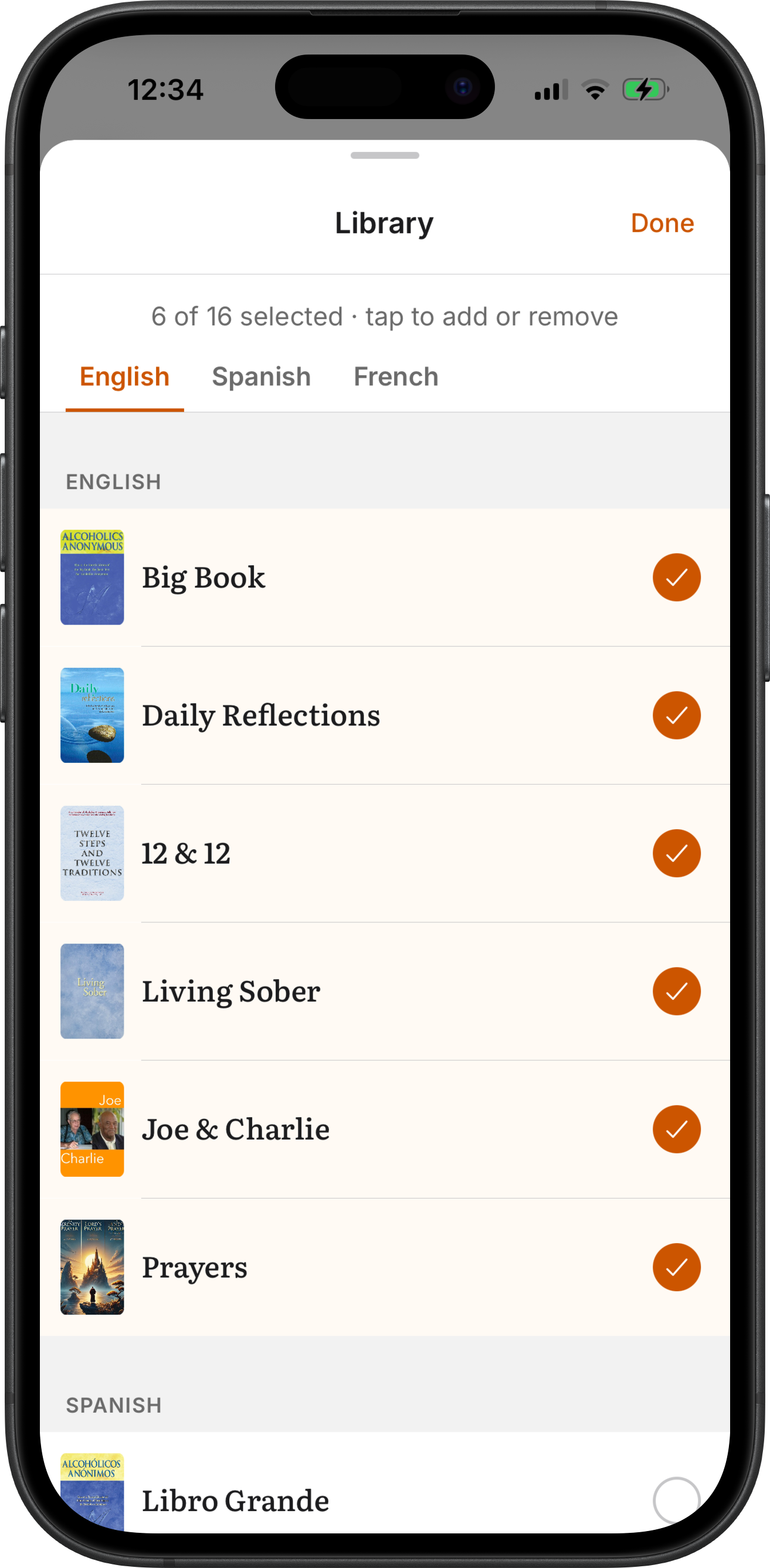
Missing a book? Open Profile → My Library and tap + Library, then tap the books you want, in English, Spanish or French. Drag the handles to put your shelf in order.
Start reading - it's free
Free, no-ads on the SoberHub App.
iOS

Android